The screen
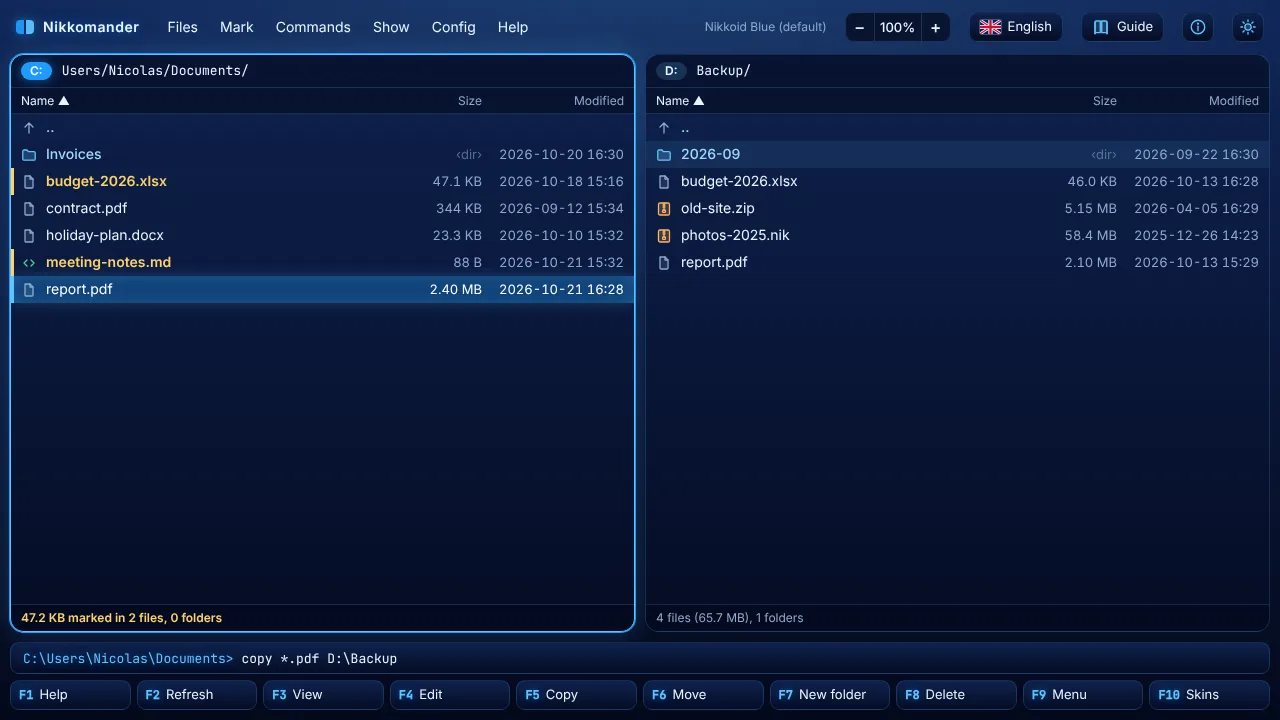
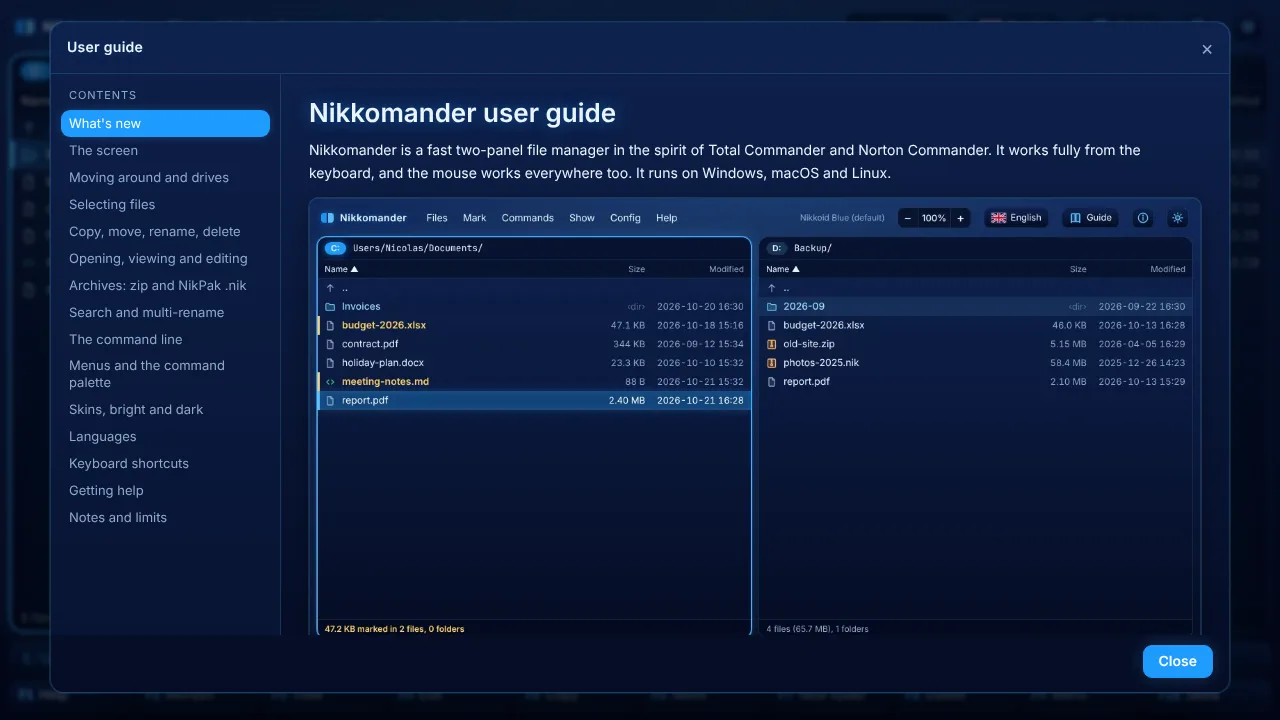
- Two panels. The active panel has a glowing frame.
Tabor theLeft/Rightarrows switch panels. The header shows the drive and the folder, and the line at the bottom shows the number of files and the size of the marked ones. - The command line sits above the function keys. Just start typing in a panel and your text goes there (see The command line).
- The function key bar.
F1toF10are the main commands. Each one can also be clicked. - The top bar. It has the menus (Files, Mark, Commands, Show, Config, Help), the name of the current skin, and four buttons: the language (flag), the Guide (this window), About (i) and the sun / moon button, which switches between bright and dark blue.
- Zoom. The
−100%+buttons next to the language button zoom the whole interface like Chrome; click the percentage to come back to 100%.
Everything works without a mouse. F9 opens the menu, Ctrl+Shift+P opens the command palette (type part of a command name), and F1 lists all the shortcuts.
Moving around and drives
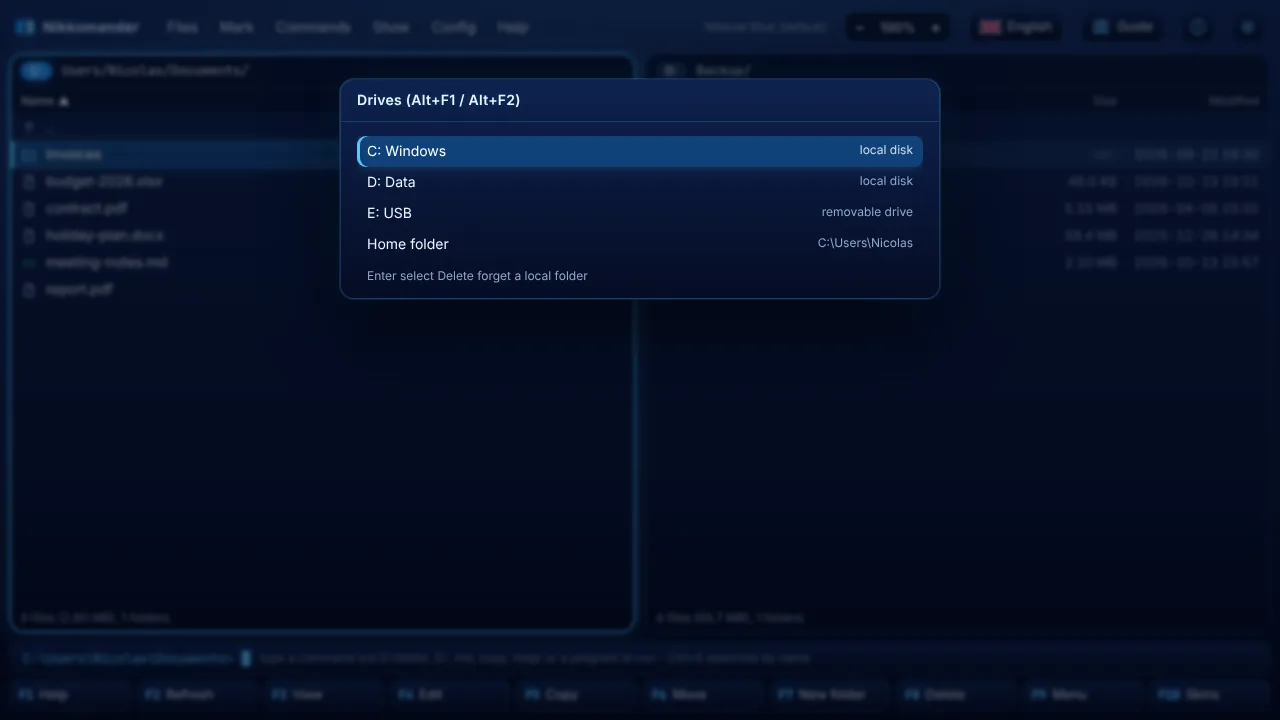
Up,Down,PgUp,PgDn,HomeandEndmove the cursor.Enteropens a folder,Backspacegoes to the parent folder.Alt+F1(left panel) orAlt+F2(right panel) open the drive list: every drive of your computer (C:, D:, E: ... on Windows, USB and network drives included;/and all mounted volumes on macOS and Linux) and your Home folder. The list is refreshed every time it opens, so a USB stick you just plugged in is there.Ctrl+Dopens the directory hotlist (Insertadds the current folder,Deleteremoves one).Alt+Downshows the folder history, andAlt+Left/Alt+Rightgo back and forward.Ctrl+Ggoes to a path you type, andCtrl+\goes to the root folder.Ctrl+Left/Ctrl+Rightshow the current folder in the other panel.Ctrl+Uswaps the panels.- Tabs:
Ctrl+Upopens a new tab,Ctrl+Downcloses it,Alt+PgUp/Alt+PgDnswitch tabs. Ctrl+Sstarts the type-ahead search: type letters to jump to a file by its name.Escleaves it.
Nikkomander starts in your home folder the first time, and in the folders you last used after that.
Selecting files
Insertmarks the file under the cursor and moves down.Spacemarks too; on a folder it also computes the folder's size.Shift+Up/Shift+Downmark while moving.Num+selects a group with wildcards (*.pdf),Num-unselects a group, andNum*inverts the selection.Ctrl+Aselects everything,Ctrl+Shift+Aonly files, andCtrl+Num-unselects everything.- Marked files are highlighted and their total size appears at the bottom of the panel. When nothing is marked, commands work on the file under the cursor.
Copy, move, rename, delete
| Key | Action |
|---|---|
F5 | Copy to the other panel (with a single item you can edit the target name) |
Shift+F5 | Copy in the same folder under a new name |
F6 | Move to the other panel |
Shift+F6 | Rename |
F7 | New folder (a/b/c creates nested folders) |
F8 or Delete | Delete to the recycle bin / Trash |
Shift+F8 or Shift+Delete | Delete permanently |
Ctrl+C / Ctrl+X / Ctrl+V | Copy, cut and paste inside the app |
Copies keep the file dates. Big files are copied in blocks with a progress bar, and Esc cancels. A cancelled copy never leaves half a file behind. You can also drag files from Explorer or Finder onto a panel to copy them there.
Background operations
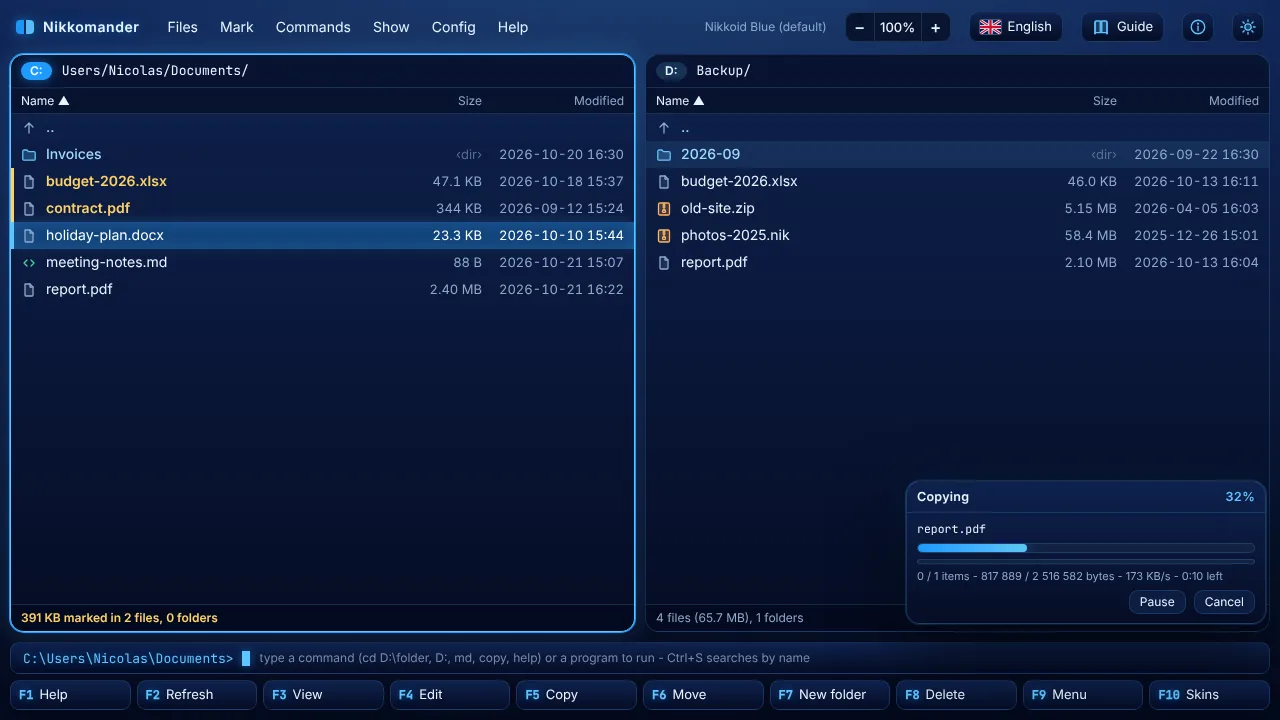
A copy, move, delete, pack or unpack first shows its progress window in front: file name, two progress bars (the current file and the whole job), speed and time left. Press Background (F2) and the window shrinks into the bottom right corner: you can browse, view, edit and start other operations while it runs. Drag a background window by its title to put it anywhere. Several operations can run at the same time; .nik archives are packed and unpacked one after the other (NikPak works on one archive at a time), the next one says it is waiting. Pause / Resume and Cancel are always there. When an operation ends, the panels are refreshed and a message gives the result.
When a file already exists
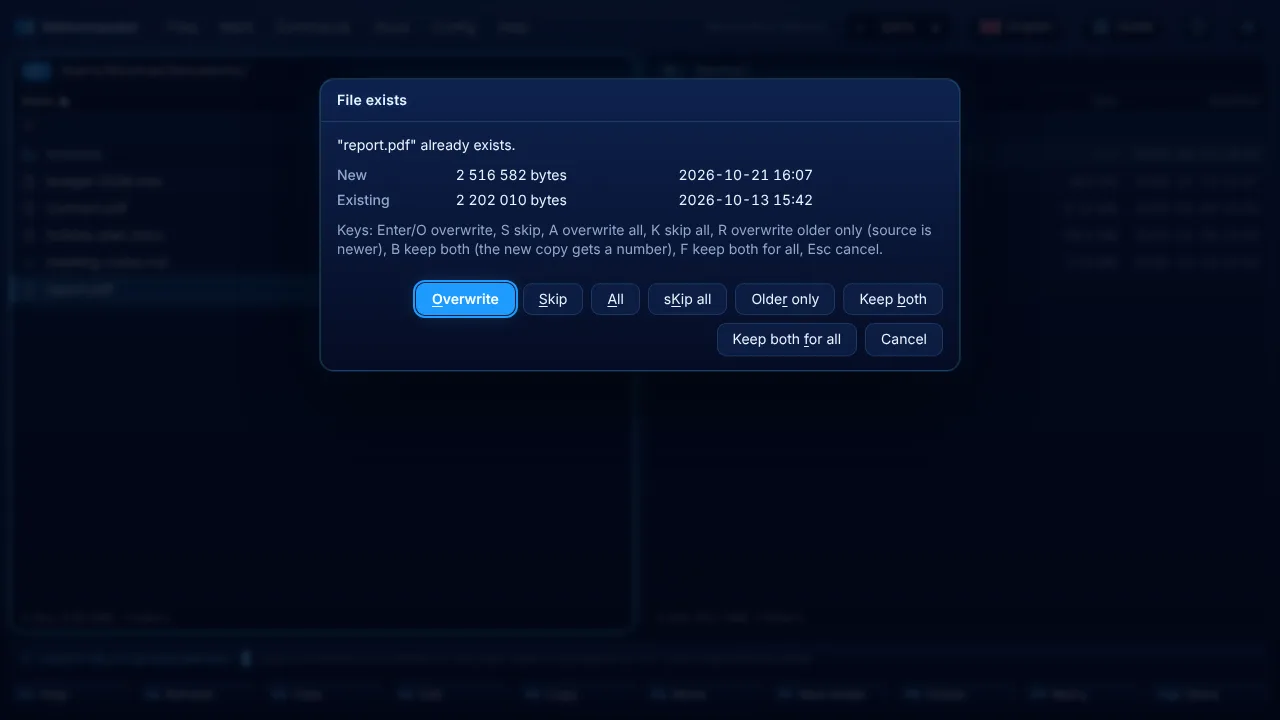
The window compares the size and date of both files and offers:
| Key | Choice |
|---|---|
O or Enter | Overwrite |
S | Skip this file |
A | Overwrite all |
K | Skip all |
R | Overwrite older files only |
B | Keep both: the new copy gets a number, report (1).pdf |
F | Keep both for all |
Esc | Cancel |
Opening, viewing and editing
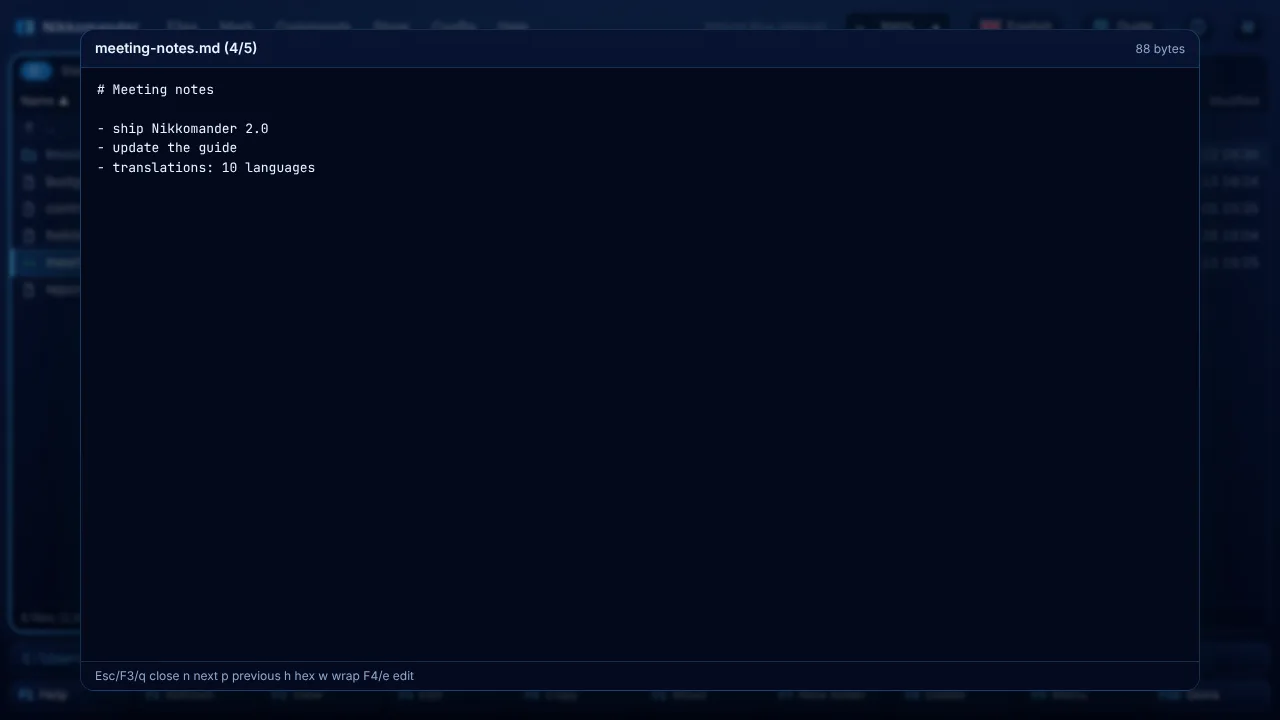
Enteron a file opens it with its usual program, like a double-click in Explorer.Shift+Enterdoes the same for the file under the cursor.F3opens the viewer: text, hex, images, audio, video and PDF. Big files are streamed from disk. In the viewer,n/pgo to the next / previous file,hswitches to hex,wtoggles line wrap,F4edits, andEsccloses.F4opens the editor (Ctrl+Ssaves,Esccloses), andShift+F4creates a new text file.Alt+Entershows the properties and the total size.Alt+Shift+Entercomputes the sizes of all folders.Ctrl+Shift+Kcomputes the SHA-256 and SHA-1 checksums of a file, andCtrl+Shift+Ccopies its full path as text.
Archives: zip and NikPak .nik
- Zip files work like folders.
Enteropens them,F5/F6copy in and out, and you can delete and edit files inside them. The same goes for.jar .cbz .epub .apk .xpi .war. - NikPak
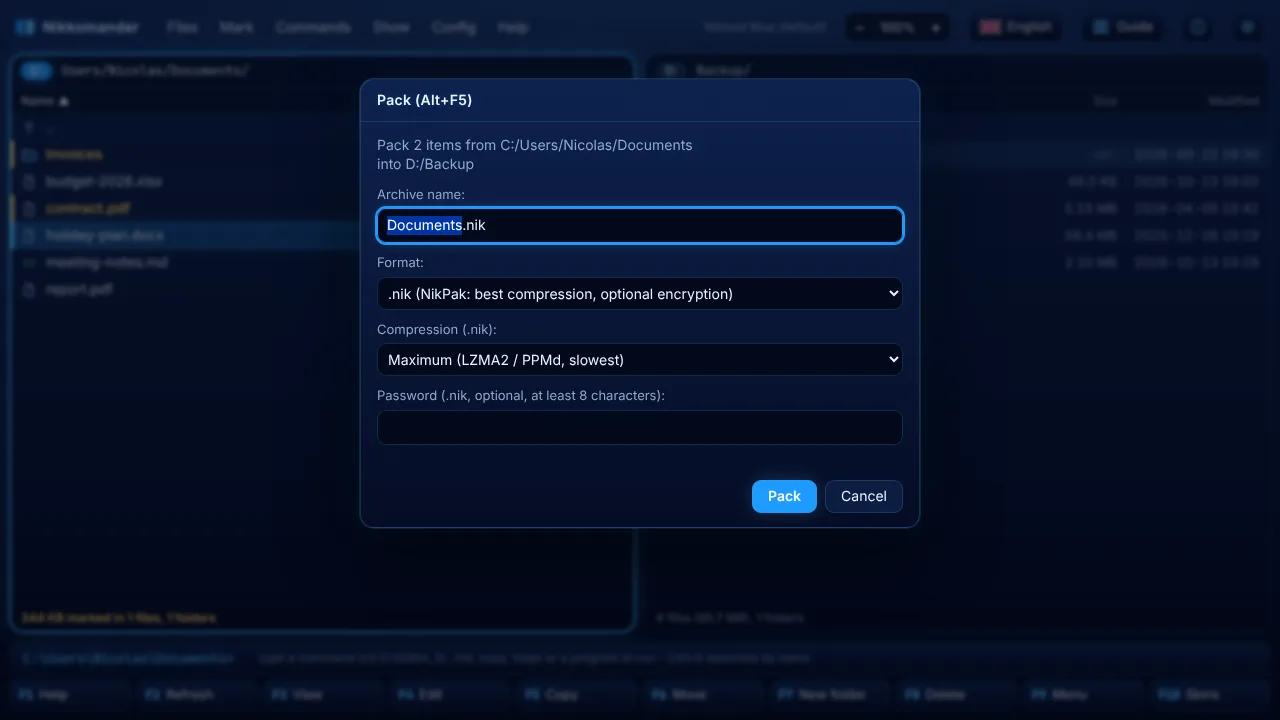
.nikarchives are supported natively.Enterbrowses them (and asks for the password of encrypted ones),F3views,F5orAlt+F9extract. Alt+F5packs the selection into the other panel. Choose .nik (best compression, optional encryption) or .zip (opens everywhere). For .nik, choose a compression level: Store, Fastest, Fast, Medium, High or Maximum (NikPak's-m0to-m5). An optional password needs at least 8 characters.Alt+F9unpacks the selected archives into the other panel, or the archive you are in.- If the archive name already exists, Keep both creates
name (1).zipinstead of replacing the file.
.nik archives are solid, so they are not edited in place. .tar, .7z and .rar are not supported yet.
Search and multi-rename
Alt+F7searches by name (wildcards such as*.pdf; *.docx) and, optionally, by text inside the files.Ctrl+Mopens multi-rename: patterns[N](name),[E](extension) and[C](counter), search and replace, and upper / lower case.Ctrl+F3toCtrl+F6sort by name, extension, date or size. Press the same key again to reverse the order.Ctrl+Hshows or hides hidden files.
Multi-rename tool
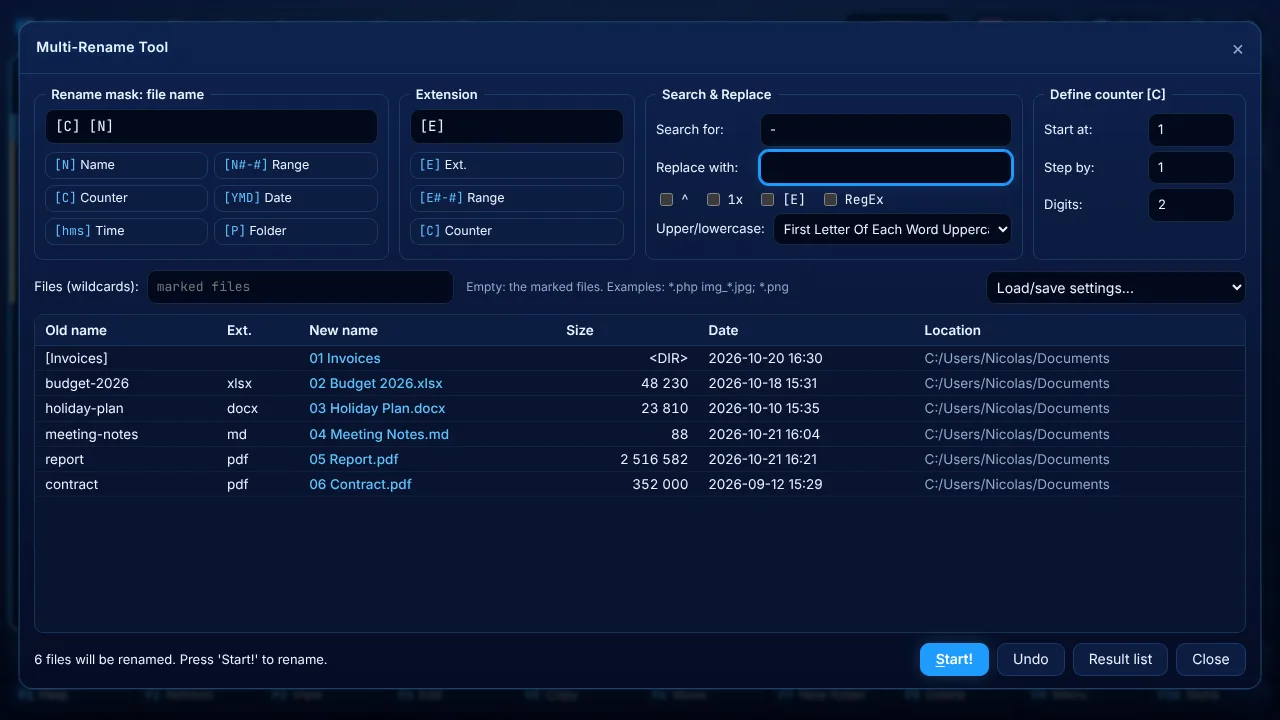
Ctrl+M renames the marked files (or, with the Files field, every file matching wildcards such as *.php or img_*.jpg; *.png). The list shows the old and new names live; names that cannot be used are shown in red and stop Start!.
| In the mask | Becomes |
|---|---|
[N] | the name, without the extension |
[N1-4], [N3], [N2,5], [N5-], [N-3] | characters 1 to 4, the 3rd, 5 characters from the 2nd, from the 5th to the end, the last 3 |
[E], [E1-2] | the extension, or part of it |
[C], [C10+5:3] | the counter (start, step and digits from the counter box, or written in the mask) |
[Y] [M] [D], [h] [n] [s] | the year, month, day, hour, minutes, seconds of the file date |
[P] | the name of the folder |
- Search & Replace: plain text, several terms separated by
|(red|green→R|G), wildcards (IMG_*→photo-*), or a regular expression with RegEx ($1in the replacement).^makes the search case-sensitive,1xreplaces only the first match,[E]also searches the extension. - Upper/lowercase: unchanged, lowercase, UPPERCASE, First letter uppercase, First Letter Of Each Word Uppercase.
- Load/save settings (
F2) keeps your favourite masks. Undo puts the old names back, Result list shows what was renamed.
The command line
Start typing in either panel and your text appears in the prompt above the function keys (for example C:\Users\Nicolas>). Enter runs it and Esc clears it. Ctrl+E shows the command history, Ctrl+Enter inserts the name of the file under the cursor, and Shift+Insert pastes text.
| Command | Effect |
|---|---|
D: / E: | Switch the panel to that drive (back to the last folder you used there) |
cd D:\Projects, cd .., cd\ | Change folder (/ or \, any case, quotes allowed) |
md a\b\c | Create folders |
rd name | Remove a folder (asks first) |
del *.tmp | Delete matching files (asks first) |
ren old new | Rename |
copy *.txt D:\Backup | Copy files or patterns to a folder |
move a.txt .. | Move |
type file / edit file | View / edit a file |
touch file | Create an empty file |
term | Open a terminal here |
help | List of commands |
| anything else | Runs as a program in the current folder: notepad readme.txt, code ., explorer . |
On macOS and Linux, C: is the root folder / and each mounted volume gets D:, E: and so on.
Menus and the command palette
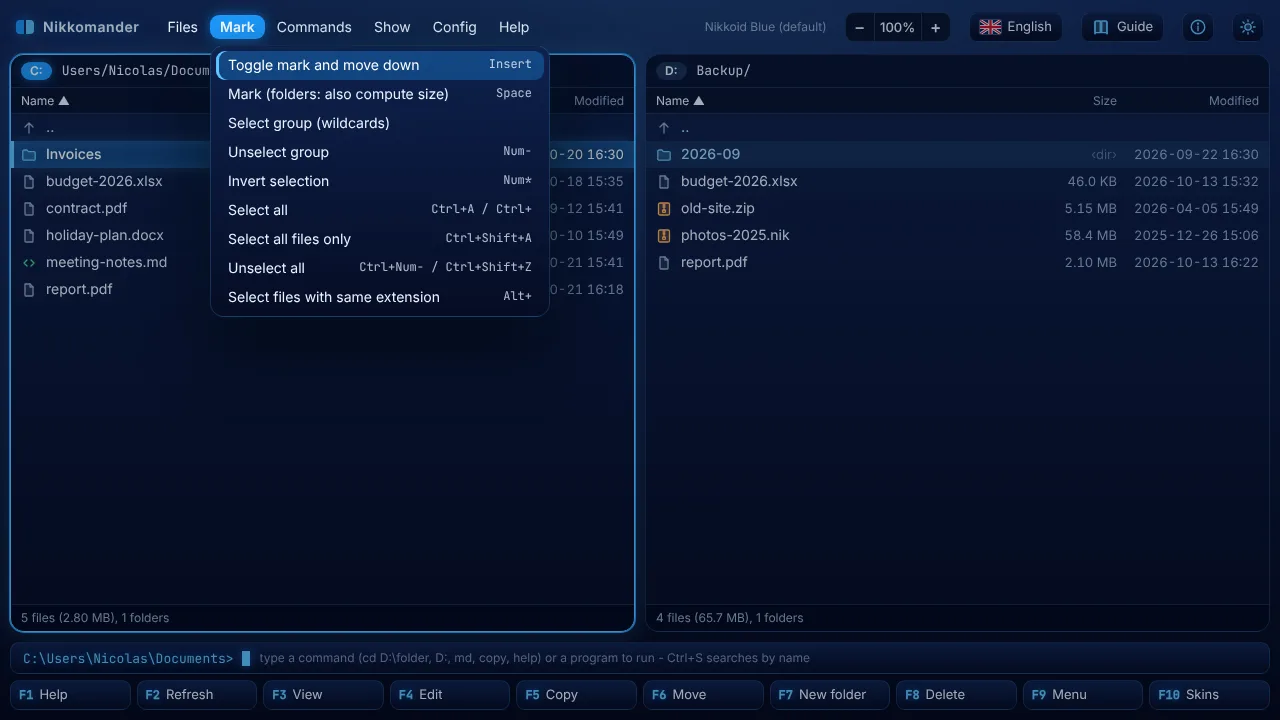
F9 opens the menu bar. Left / Right switch menus, Up / Down move, Enter runs a command and Esc closes the menu. Every menu entry shows its shortcut. Ctrl+Shift+P opens the command palette: type a few letters of any command and press Enter.
Skins, bright and dark
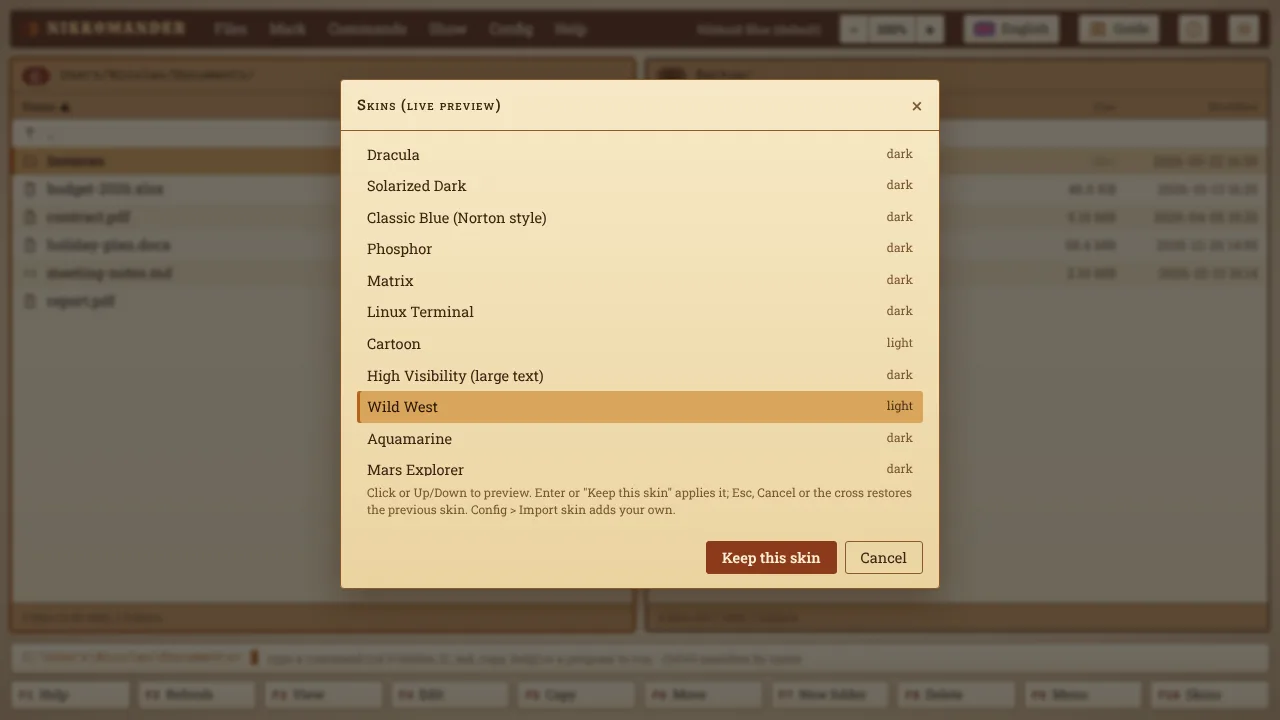
F10 (or Alt+S) opens the skin window. Click a skin or use Up / Down to preview it live. Keep this skin (Enter) applies it, while Cancel, Esc or the cross bring back the previous skin. There are 41 built-in skins: Nikkoid Blue (default), Nikkoid Bright, Total Commander Black, Matrix, Linux Terminal, Cartoon, High Visibility (large text), Classic Blue (Norton style), Aquamarine, Mars Explorer, Halloween, Christmas, 8-Bit Game and many more. Each one comes with its own font.
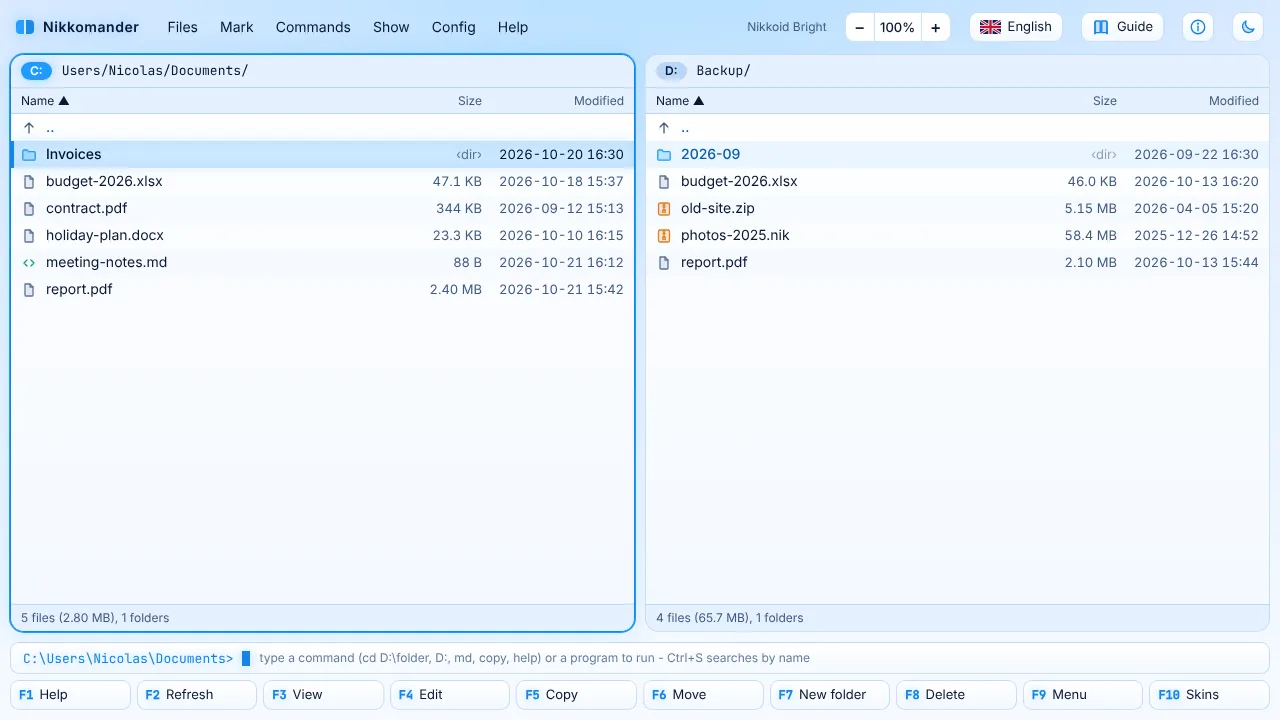
The sun / moon button at the top right (Ctrl+Shift+B) switches between Nikkoid Blue and Nikkoid Bright.
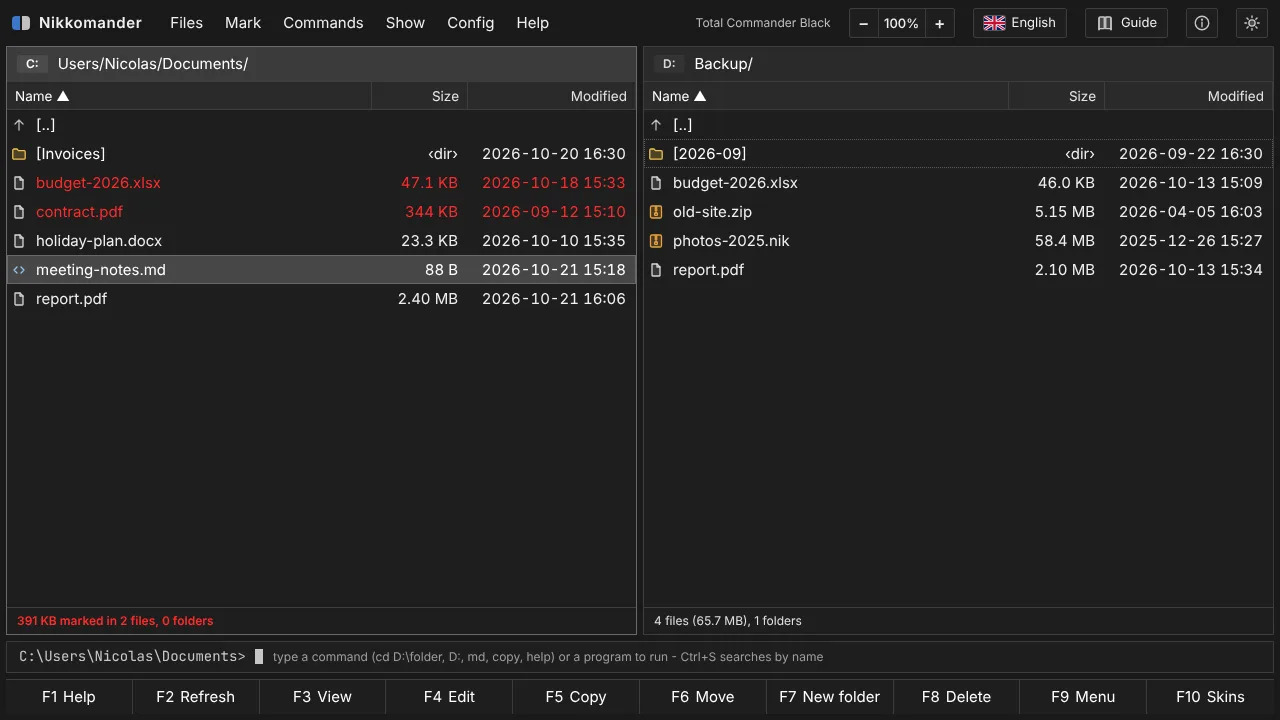
Total Commander Black is a flat black skin made for clarity: white text on charcoal, a grey cursor bar, marked files in red, [folders] in brackets, the Segoe UI font and no glow.
To make your own skin, Config > Export current skin writes a template, and Config > Import skin loads your JSON file.
Languages
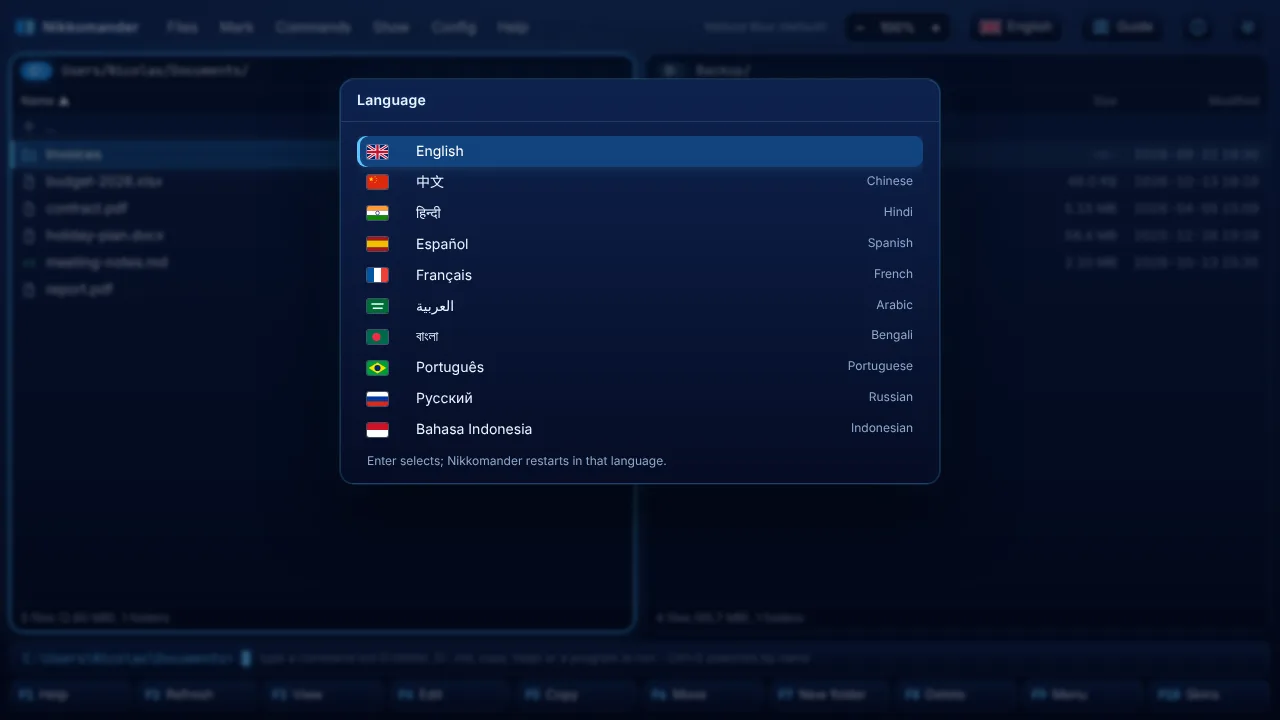
Nikkomander speaks English, 中文, हिन्दी, Español, Français, العربية, বাংলা, Português, Русский and Bahasa Indonesia. Click the flag at the top right, or press Ctrl+Shift+L. The window restarts in the new language and remembers it. The first time, it follows the language of your system. This guide opens in the same language.
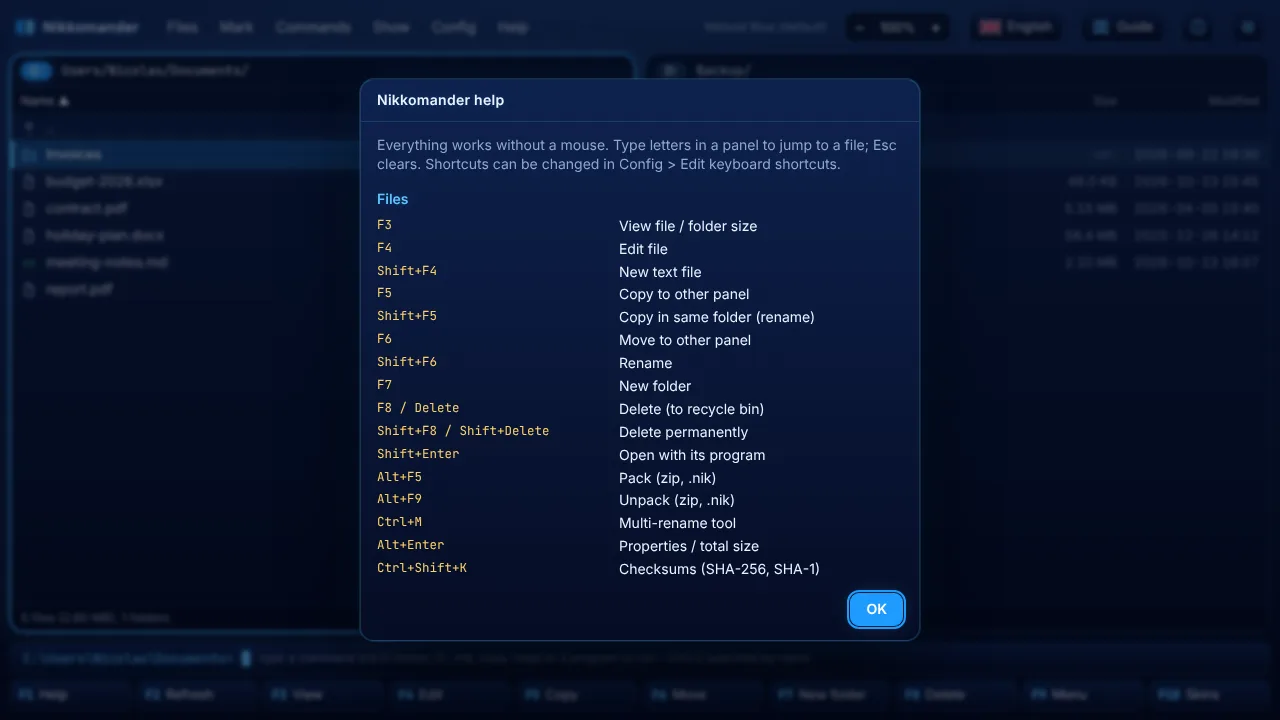
Keyboard shortcuts
F1 shows the live list of all shortcuts, including any you have changed.
To change a shortcut, open F9 > Config > Edit keyboard shortcuts. It shows a list of command ids with their keys. Edit it and save. Keys are written like F5, Alt+F5, Ctrl+Shift+C or Num+.
| Key | Action |
|---|---|
Tab / Left / Right | Switch panel |
Enter / Backspace | Open / parent folder |
Insert / Space | Mark |
F3 / F4 | View / edit |
F5 / F6 | Copy / move |
F7 / F8 | New folder / delete |
Alt+F5 / Alt+F9 | Pack / unpack |
Alt+F7 | Search |
Ctrl+M | Multi-rename |
Alt+F1 / Alt+F2 | Drives |
Ctrl+D | Hotlist |
Ctrl+Shift+T | Terminal in the current folder |
F2 or Ctrl+R | Refresh |
F9 / F10 | Menu / skins |
Ctrl++ / Ctrl+- / Ctrl+0 | Zoom in / out / back to 100% |
F2 (progress window) | Send the operation to the background |
Shift+F1 | This guide |
Alt+X | Quit |
Getting help
- This guide: the Guide button at the top right, Help > User guide, or
Shift+F1. Close it with the cross at the top right, the Close button at the bottom, orEsc. - All the shortcuts:
F1. - About Nikkomander: the i button shows the version and a link to nikkomander.nikkoid.com.
Licence and registration
Nikkomander is shareware. Individuals may use it for free, without time limit, for personal use; companies and organisations need one licence per seat (personal licence $19, company licences from $5 per seat, on the buy page).
- An unregistered copy shows a reminder at start: Register opens the registration box, Test for free goes on.
- To register, use Register in the reminder, the Evaluation copy · Register button at the top right or Help > Register Nikkomander, enter your name and e-mail address exactly as on your licence and paste the key (
NKM1-...). The key is checked on your computer, without Internet. - A company can register every computer at once by putting the
nikkomander.keyfile next toNikkomander.exe. - Help > About Nikkomander shows to whom the copy is registered.
Notes and limits
F8/Deletemove items to the recycle bin (Windows), the Trash (macOS) or the trash (Linux).Shift+F8/Shift+Deleteand deletes inside archives are permanent. A confirmation is always shown.- Big zip files are built in memory, so multi-GB zip archives are limited by your memory.
.nikarchives have no such limit. - Network paths written as
\\server\shareare not supported yet. Map them to a drive letter first. - Settings (skin, language, shortcuts, hotlist, last folders) are stored on your computer. Config > Reset all settings clears them.
© 2026 Nicolas Choukroun · Distributed by Nikkoid LLC · nikkomander.nikkoid.com